Manage sounds
Sound assets require the game creator's sound entitlement. The game code decides when to play each asset.
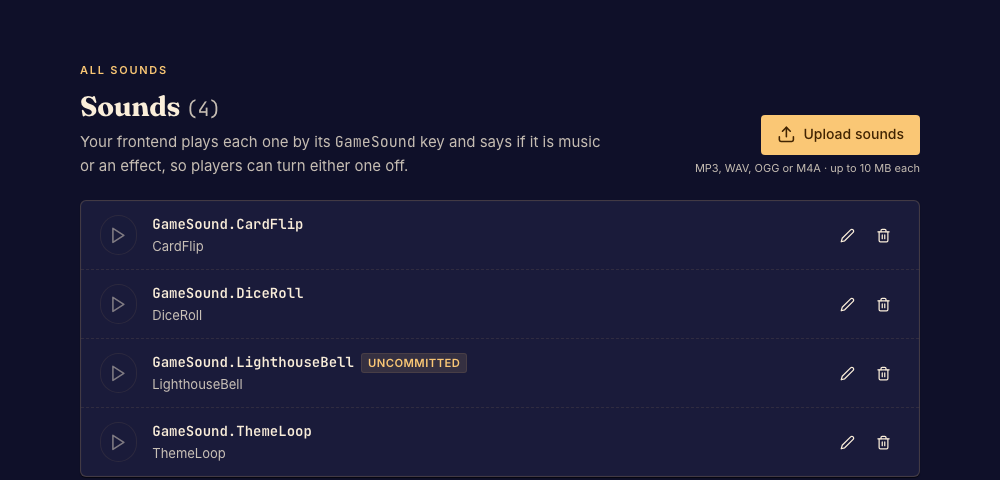
Add sound
- Open Sounds and check that editing is available. Done when the upload controls are enabled.
- Choose a file accepted by the uploader and give it a valid asset name. Done when the asset appears in the list.
- Use its preview control, then test playback in the game. Done when the intended interaction plays the expected sound.
- Remove unused assets and commit your changes. Done when the committed version contains the sounds it needs.
A filename extension alone does not make an unsupported audio encoding valid. Follow the upload validation message if a file is refused.
Players control music and effects volume independently of your asset list. The framework assets reference explains how the client uses sounds.