Run event tables
The event organizer page shows tables, waiting groups, and controls for the room. Each table can be at a different point in play.
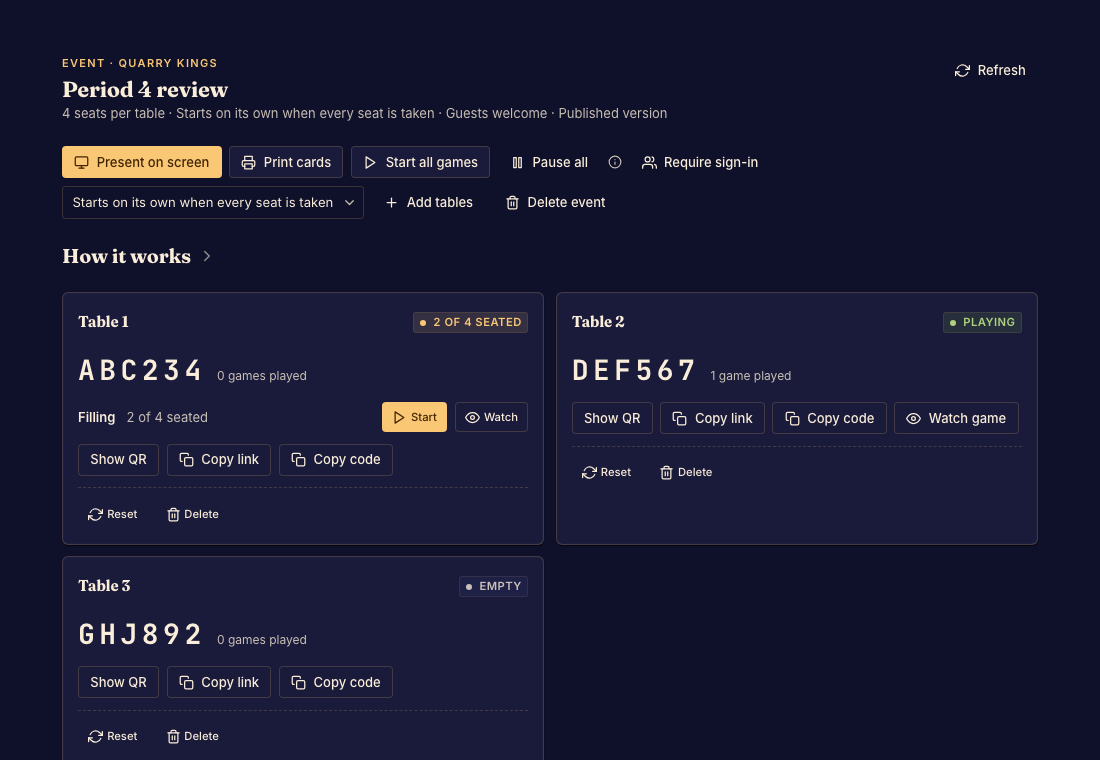
Keep the room moving
- Open your event and inspect each table's status. Done when you can distinguish waiting groups from active matches.
- Add tables when more groups need space. For manual-start tables, start a ready group when the seat count is valid. Done when each intended group reaches its match.
- Use Pause all when the event should stop new joins, and resume it when ready. Done when the event status reflects the intended policy.
Pausing sends waiting players back to the join page. Existing games finish on their own, and the same printed codes work after you resume.
Reset or remove a table
Read the action's confirmation before resetting or deleting. Resetting sends every waiting group back to the join page; the same code opens a fresh group on its next scan. Deleting a table permanently disables its code and QR and sends waiting groups away. Games already being played finish on their own.
Tell attendees which code to use after changing the table setup. See Join an event table for the attendee experience.