Manage agent connections
Connected clients appear in your account settings. Review them when you change tools or finish working with an agent.
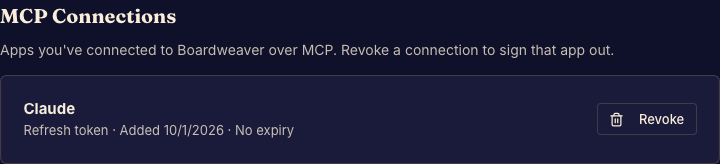
Review or revoke access
- Open Settings and choose MCP Connections. Done when the connected-client list is visible.
- Inspect the client's identity and access details. Done when you have identified the connection you intend to change.
- Revoke that connection. Done when it is no longer listed as active.
Reconnecting
A revoked client must authorize again before continuing. Revocation does not undo source edits or commits that the client already made. Review the game's working changes separately in Studio.
Guest accounts do not have the MCP Connections settings tab. Keep the account first if you need a durable authoring identity.