Connect a coding agent
A connected coding agent can work with the games your account permits it to access. Use the connection instructions at Build it yourself.
Connect your client
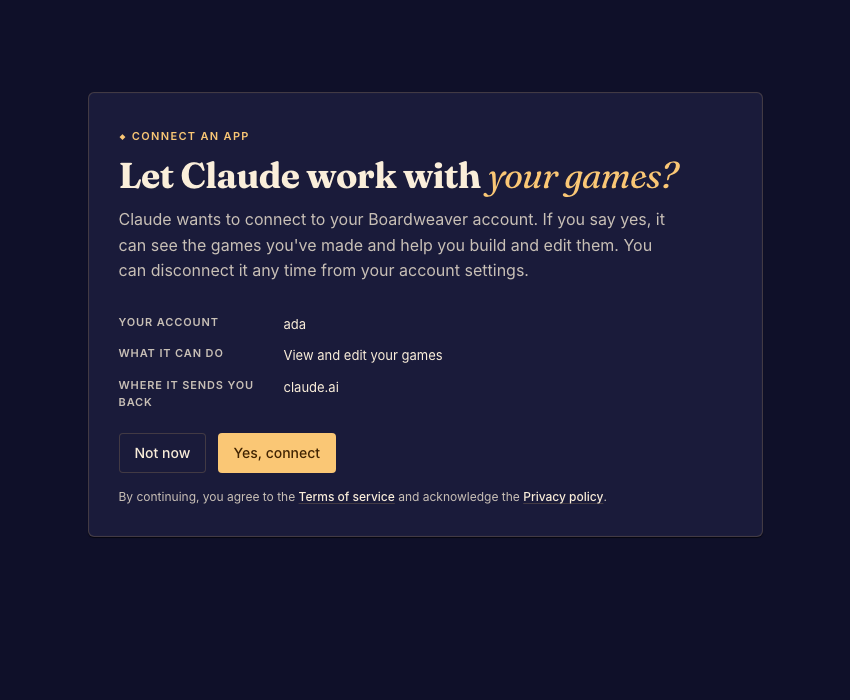
- Open your coding client's connector or MCP server settings. Add the Boardweaver server at
https://www.boardweaver.com/mcp. Done when the client offers to authorize the connection. - Sign in to Boardweaver and read the requested permissions on the consent screen. Approve the connection if they match the work you want it to do. Done when the client reports a connected server.
- Ask the agent to list your games and open the intended game. Done when it identifies the correct project and framework version.
Client differences
In clients with hosted connectors, add the URL through the connector interface. In clients with MCP configuration, use their supported remote-server connection flow. Consult your client's instructions if it cannot complete authorization.
The server serves framework documentation only. Read Studio and player guides on this website. You can revoke a connection later.