Images and sounds
API
| Hook | Contract |
|---|---|
useImage(key) |
string | undefined: the URL of the game's art key. |
useSounds() |
Sounds: { play(key: string, options: PlaySoundOptions): SoundHandle; stopAll(type?: SoundType): void }, the same object for the whole match. PlaySoundOptions is { type: "music" | "effect"; loop?: boolean; volume?: number } and SoundHandle is { stop(): void }. play throws for a key the game has no sound for. See Sounds. |
useAudioSettings() |
AudioSettings: { music: boolean; effects: boolean }, what the player hears now. useSounds() already applies it. |
Images
Resolve uploaded art with useImage(key). The key belongs to the game's art library. The hook returns undefined when the image is unavailable. Render a fallback rather than an image with a missing source.
import { useImage } from "boardweaver/react";

export function CardBack() {
  const image = useImage("CardBack");
  return image ? <img src={image} alt="Card back" /> : <span>Card</span>;
}
Renaming an art key also requires updating its client references. Use the uploaded image URL rather than fetching an external asset.
Sounds
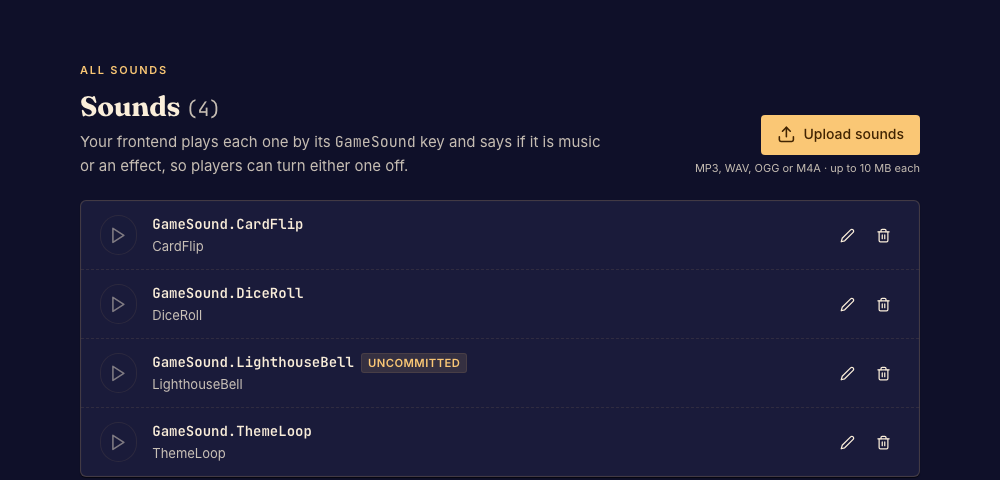
Upload each sound with upload_sound or Upload sounds in the studio's Sounds view: MP3, WAV, OGG or M4A, at most 10 MB, under a key of UpperCamelCase ASCII letters and digits, such as DiceRoll. Uploading needs the Designer or Professional plan, and every player hears the game's sounds whatever their plan. An upload is a pending change, which the studio preview plays at once and commit makes permanent. A sound lives at /sounds/<Key>: upload the same key again to replace it, move it with rename_file and remove it with delete_file, then change every key the client plays to match. A sound is fetched the first time it plays.
Play a sound by its key with useSounds(). Say at each play whether it is "music" (a soundtrack or an ambient loop) or an "effect" (a sound that answers a step):
import { useEffect } from "react";
import { useLastChange, useSounds } from "boardweaver/react";

export function GameSounds() {
  const sounds = useSounds();
  const change = useLastChange();

  useEffect(() => {
    const theme = sounds.play("ThemeLoop", { type: "music", loop: true });
    return () => theme.stop();
  }, [sounds]);

  useEffect(() => {
    if (change.coalesced || change.direction === "back") return;
    if (change.steps.some((step) => step.movements.length > 0)) {
      sounds.play("PiecePlaced", { type: "effect" });
    }
  }, [change, sounds]);

  return null;
}
play(key, { type, loop?, volume? })returns{ stop() }. It throws for a key the game has no sound for.volumeis 0 to 1, and iOS Safari ignores it.stopAll(type?)stops every playing sound, or every one of a type.- Play each step's sound from an effect on
useLastChange(), so it plays as Boardweaver shows the step, for the player's own steps and other players' alike. Skip acoalescedchange and one whosedirectionisback, as for animation. - Start music in an effect and stop it in the cleanup, so it ends with the component.
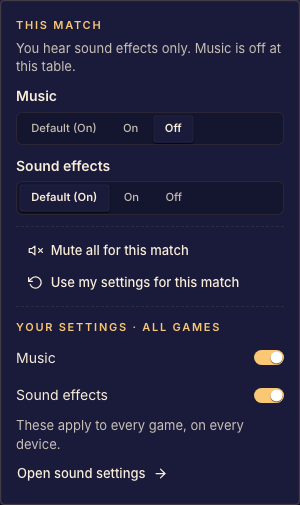
Each player turns music and effects on and off, for every game or for one match, from the sound control on the bar. Boardweaver applies it: an effect played while effects are off does nothing, and music plays muted while music is off, so it is in the right place when the player turns it back on. useAudioSettings() gives { music, effects }, only to show the player's choice in your own controls.
Browsers play no sound until the player presses or types in the game. Music started before that starts at the first press. An effect played before it is dropped.
Sound made with Web Audio ignores the player's settings, so a player who turned sound off still hears it. Upload a file and play it with useSounds() instead.